
Moving platforms is stressful. And the biggest fear most people have during a Shopify migration is watching their search rankings drop after all the work they put into building them.
The good news is that most SEO problems during a migration do not happen because Shopify is bad for SEO. They happen because the migration was not planned properly.
And then everyone blames the platform.
When you migrate a website to Shopify the right way, none of that has to happen. This guide covers the full process from the pre-migration audit to post-launch monitoring. Every step that matters is here.
Too many plugins slow a WooCommerce store down gradually, and most store owners do not notice until sales start dropping. An eCommerce platform migration to Shopify hands over hosting, CDN, and security to Shopify automatically. You stop managing the infrastructure, and the store gets faster without you doing anything extra.
Self-hosted platforms hold up fine on regular days. A big sale or a sudden viral moment is a different story. Shopify Plus is built for exactly these moments. For example: high order volumes, traffic spikes, and festival rushes. None of it requires a developer call at midnight.
Plugin conflicts happen. WordPress updates break things. Server patches need attention. Every week, something needs fixing, and none of it is running your business. Most brands that move to Shopify say the same thing afterwards. They just wanted to sell products, not manage a server.
Shopify is Level 1 PCI DSS compliant, and every store gets SSL included. For anyone running on an old custom platform or an unmaintained WooCommerce setup, this matters more than most people realise. A security failure is not just a technical problem. It is a trust problem. And trust, once lost with customers, is very hard to rebuild.
Yes. But whether you migrate a website to Shopify without losing rankings depends on how carefully the migration is handled.
Some ranking movement after a website migration to Shopify is normal. Google needs time to crawl the new URLs, work through the redirects, and reassess the page signals. That process generally takes 4 to 12 weeks, depending on how big the site is. That is not a disaster. That is just how migrations happen.
The real problem is when that temporary dip becomes permanent. And that happens for predictable reasons. Redirects were skipped. URL slugs were changed for no good reason. The store went live before anyone checked whether Google could actually crawl it properly.
A good SEO migration strategy is what separates a controlled dip from a traffic loss that takes months to recover from. Most of the damage people blame on Shopify was caused before the store even launched. The planning is where it is won or lost.
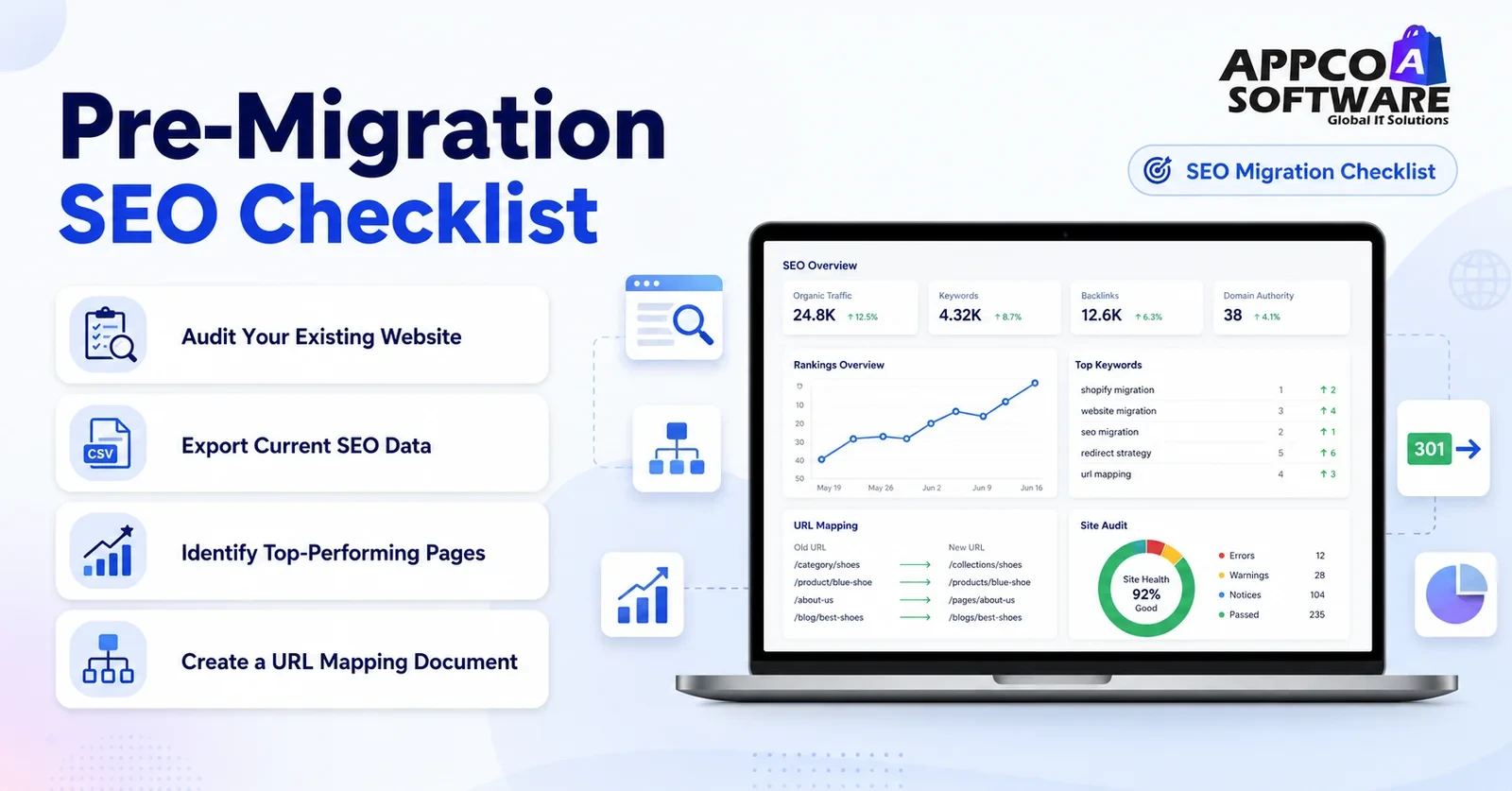
Right before you migrate the website to Shopify, the current one needs a full audit. And for that, here are the exact steps you may follow.
Use Screaming Frog or Sitebulb to crawl every URL. Export status codes, title tags, meta descriptions, H1s, and canonicals. Cross-check with Google Search Console.
Pull your full backlink profile from Ahrefs or SEMrush. URLs with backlinks pointing to them need redirects first. Losing those means losing all the link equity behind them.
From GSC, export the Performance report filtered by page. Grab all meta titles, descriptions, H1 tags, schema markup, and image alt text. Without this, you rebuild from zero on Shopify.
Sort your GSC export by clicks. The top 20% of pages drive most of your traffic. Product pages, collection pages, and blog posts ranking for commercial keywords. Check these first before anything goes live.
This is where the Shopify migration process succeeds or falls apart. Build a spreadsheet. Old URL on the left, new Shopify URL on the right. Every single page needs an entry. Every single one.
Shopify forces specific URL structures that differ from most platforms:
Products: /products/product-handle
Collections: /collections/collection-handle
Blog posts: /blogs/blog-name/post-handle
Pages: /pages/page-handle
A WooCommerce to Shopify migration commonly deals with URLs changing from /product/item-name to /products/item-name. A Magento to Shopify migration involves restructuring category paths entirely. A WordPress to Shopify migration needs blog URLs remapped from /blog-name to /blogs/news/blog-name. Each platform has its own URL pattern problem. The mapping document is what solves it.
Create the Shopify store and keep it password-protected during the migration. Set up the theme, navigation structure, and basic settings before migrating any content. Working with a team experienced in Shopify store development at this stage means the technical foundation is right before content migration begins.
Use the Shopify Importer app for basic product migration from WooCommerce via CSV. For Magento or custom platforms, tools like Matrixify (formerly Excelify) handle bulk product, collection, metafield, and customer data migration more reliably than manual CSV imports. Preserve original product handles where possible; any handle change creates a URL change that needs a redirect.
Migrate static pages (About, Contact, FAQ), blog posts, and any landing pages. Blog content in particular holds SEO value through backlinks and indexed traffic. Do not leave it behind or delete it during migration.
Using the exported data from your audit, manually recreate meta titles and meta descriptions for every product page, collection page, and blog post in Shopify. Shopify’s online store editor lets you set these per page under the Search Engine Listing section. Do not let Shopify auto-generate these from product titles alone.
Shopify’s default themes include basic Product schema (JSON-LD) automatically. But BreadcrumbList schema, the Organization schema, and any custom review schema need to be added manually inside the theme’s theme.liquid file or via a dedicated snippet. For Shopify 2.0 themes, structured data can also be added through the blocks system in section files. Validate everything in Google’s Rich Results Test after launch.
In Shopify admin, verify:
A 301 redirect tells search engines and browsers that a URL has permanently moved to a new location. It passes the majority of the original page’s link equity to the new URL.
Without a 301 redirect, anyone visiting an old URL hits a 404. Google drops that URL from its index. Any backlinks pointing to it stop passing value. For a store with years of earned rankings, missing redirects are the fastest path to a traffic collapse post-migration.
In Shopify admin, go to Online Store → Navigation → URL Redirects. Add redirects individually or bulk import via CSV. The CSV format is simple: two columns, redirect_from and redirect_to. Shopify standard plans support up to 100,000 redirects. Shopify Plus supports up to 20,000,000.
For large redirect sets, Matrixify or the Easy Redirects app handles bulk imports more reliably than the native Shopify importer.
Common Redirect Mistakes to Avoid
Run through every item here before removing the store’s password protection.
Add the new domain as a property in GSC. Submit yourdomain.com/sitemap.xml under the Sitemaps section to accelerate re-crawling.
Check the Coverage report daily for the first two weeks. Any 404 spike means a redirect was missed. Resolve it immediately.
Pull a baseline report before migration using Ahrefs or SEMrush. Compare weekly post-launch. Rankings for top pages fluctuate in the first 4 to 8 weeks. A consistent drop beyond that window points to a technical issue.
GSC’s Performance report shows clicks per URL. A drop on a specific page usually means a missed redirect, metadata issue, or crawl problem on that URL.
GSC’s Not Found report shows every 404. Cross-reference with your URL mapping document and add the missing redirect the same day you find it.
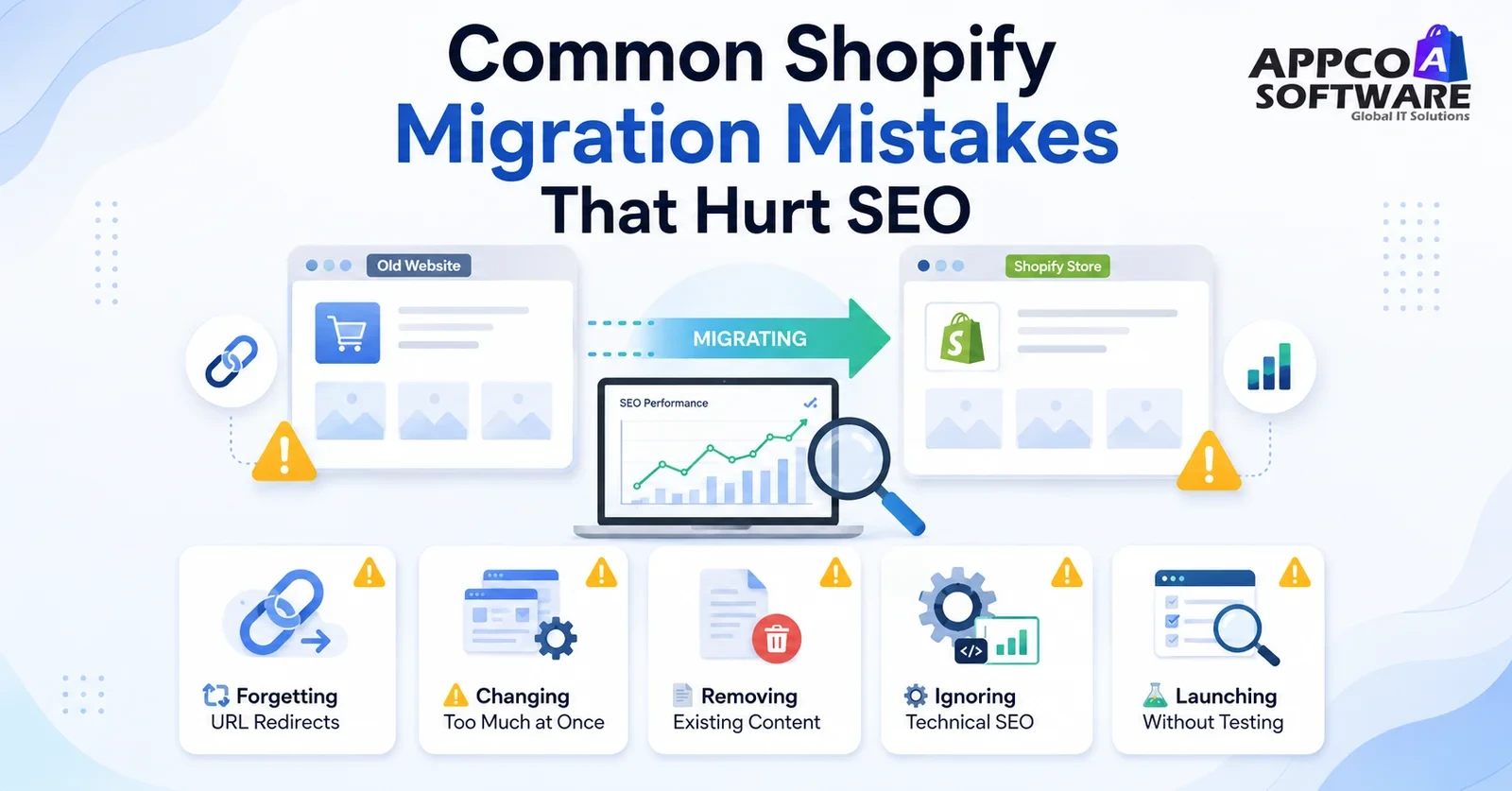
Every URL that changes without a redirect becomes a dead end. For users and for Google, both. This one mistake causes more traffic loss in a Shopify store migration than anything else.
Migration is for moving the platform. That is the only job. Restructuring URLs, renaming collections, and rewriting content at the same time make it impossible to know what caused a ranking drop later.
Blog posts and informational pages have backlinks and ranking history behind them. Deleting them during a migration throws away years of work in one go.
Things like canonical tags, robots.txt, structured data, and sitemap setup are not optional finishing touches. They tell Google how to read the new store. If you ignore them, Google will get confused about what to index.
Going live before checking redirects and crawlability is how small migration problems turn into permanent traffic losses. Test everything before the store goes public.
Most stabilise within 4 to 6 weeks when redirects and technical SEO are handled correctly.
Expect 6 to 12 weeks of fluctuation. Pages with strong backlink profiles recover first. Long-tail products and blog content take longer.
Large catalogue migrations can fluctuate for 3 to 6 months. Google processes the crawl queue in batches. Rapid 404 resolution and consistent monitoring make the biggest difference here.
A basic WooCommerce to Shopify migration with under 200 pages and no complex redirects is something a store owner can handle. Anything bigger than that, and the small mistakes add up fast. Missed redirects, lost metadata, broken structured data. Each one costs rankings.
A professional eCommerce to Shopify migration team handles everything. Pre-migration audit, URL mapping, bulk redirects, metadata recreation, structured data, and post-launch monitoring. The Shopify migration cost for professional help is almost always less than fixing a migration that went wrong.
500 plus pages, years of backlink history, Magento multi-store setup, and custom ERP integrations. Any of these makes a Shopify migration company in India the practical choice over doing it yourself. And if the store also needs a design overhaul, combining it with a Shopify store rebuild as one project saves time and money.
No. But some movement in rankings during the first few weeks is normal. Google needs time. Do the redirects right, and most of it comes back.
A small store takes around one to two weeks. If you have a bigger catalogue with integrations, it can take around 3 weeks to 3 months. It really depends on what you are working with.
Right now, your backlinks point to old URLs. No redirects means that the value just disappears. Set up 301 redirects properly, and most of it carries forward to the new store.
Yes. The one thing that trips most people up is the URL change from /product/ to /products/. Sort the redirect map, submit the new sitemap in GSC, and you are mostly fine.
Small stores start around Rs. 15,000 to Rs. 20,000. If your store is large with a full SEO audit, redirect mapping, and someone watching things after launch, the budget is closer to Rs. 1,50,000 or more.
Error: Contact form not found.

Appco Software has been around for a very long time, helping startups and established brands build iconic websites and apps. For your unique idea to be presented in a beautiful way, contact us now!